The Best Borescopes for iPhone
An iPhone borescope either plugs straight into the phone or streams over WiFi to an app. A wired scope skips WiFi pairing and WiFi lag; WiFi works with any iPhone and keeps the port free. Here are the best iPhone-compatible borescopes, by use.

- 5 picks compared
- Specs checked against maker data
- No paid placements
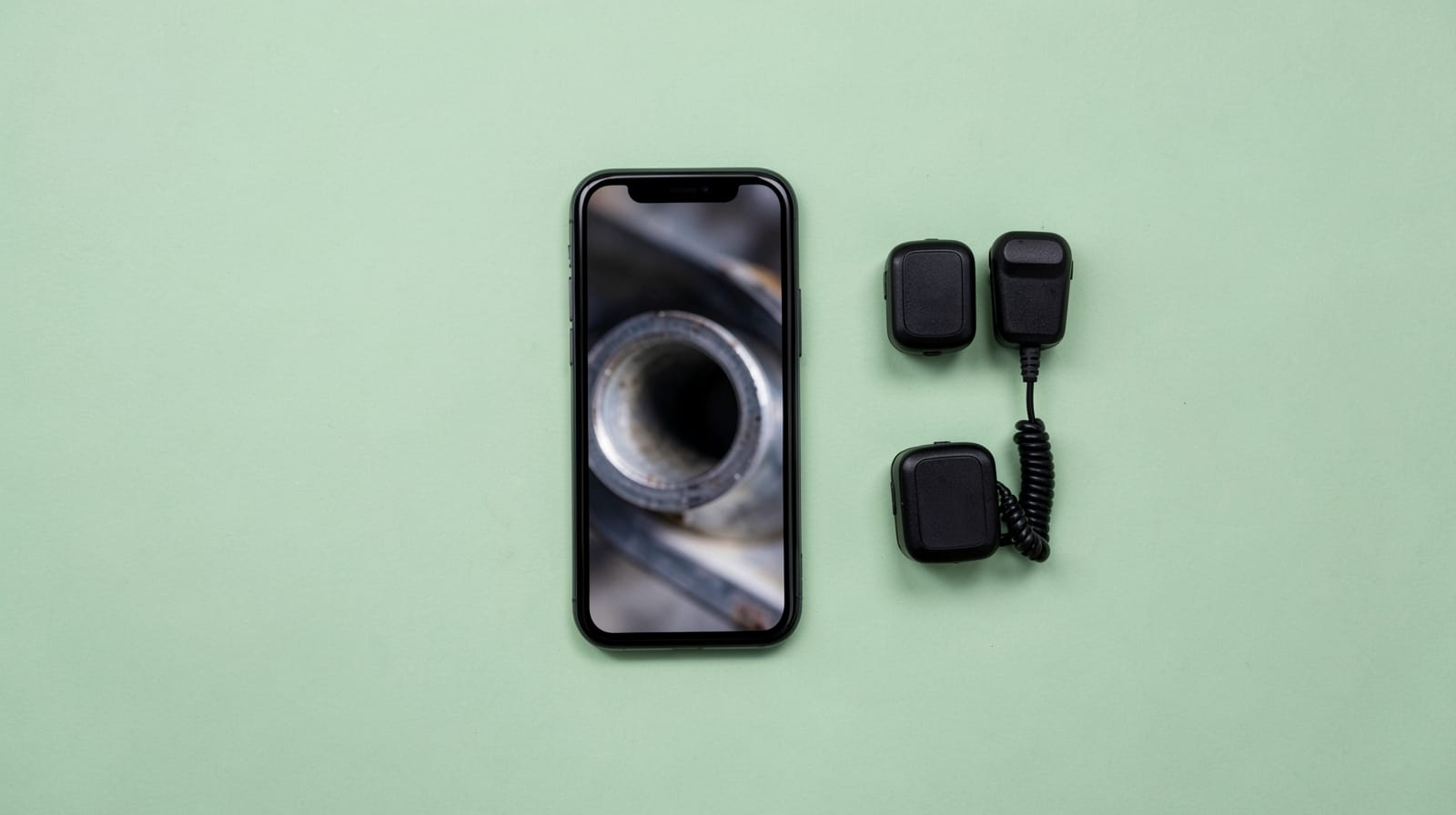
GaugeGrade is reader-supported. When you buy through links on our site we may earn an affiliate commission at no extra cost to you. We only recommend gear we have researched against verified manufacturer specifications.
- 1Wired or WiFi: a plug-in scope skips WiFi pairing and lag; a WiFi scope streams to an app with nothing plugged in.
- 2Check the plug: both wired picks here come with Lightning and USB-C connectors, so they fit older and newer iPhones.
- 3Treat 1080p as the floor on a phone screen; our top pick records at 2K (2560 × 1440).
- 4For cylinders you still need a thin probe: about 5.5 mm or smaller, and 3.9 mm for the tightest plug wells.
What we recommend
Compare the key specs side by side, then read the full notes on each pick below.
- Resolution
- 2K (2560 × 1440), dual lens
- Connection
- Wired: USB-C + Lightning adapter(iOS 11+)
- Cable
- 16.5ft
- Resolution
- 2 MP, 1920×1440, dual lens
- Connection
- Wired: Lightning or USB-C(app needs iOS 11+)
- Cable
- 16.4ft
- Resolution
- 480p
- Connection
- WiFi(iOS/Android)
- Cable
- 5ft
- Resolution
- 1080p, 5.5 mm probe
- Connection
- WiFi(iOS 9+/Android 7+)
- Cable
- 11.5ft
- Resolution
- 1080p, 3.9 mm probe
- Connection
- WiFi(iOS 9+/Android 5+)
- Cable
- 5ft


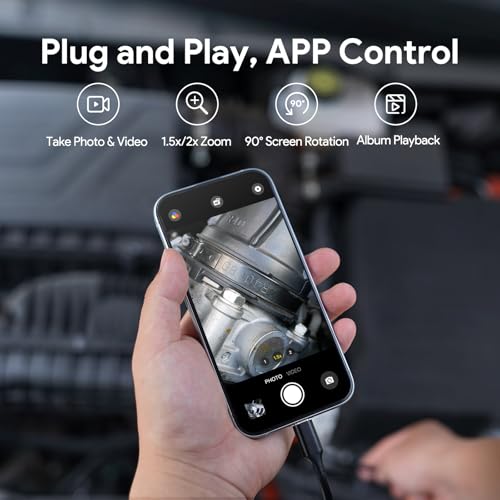


DEPSTECH NTC55 2K Dual-Lens Borescope
The highest-resolution picture here, wired to an iPhone, with a side camera to see around corners
- Resolution
- 2K (2560 × 1440), dual lens
- Connection
- Wired: USB-C + Lightning adapter (iOS 11+)
- Cable
- 16.5 ft
- 2K image from front and side cameras, switched in the app
- Plugs in (USB-C, with a Lightning adapter): no WiFi pairing or WiFi lag
- 8+1 adjustable LEDs, IP67 probe; hook and magnet included
- 7.9 mm probe is tight in 12 mm plug holes and may not pass 10 mm ones
- Needs the DEPSTECHCAM app, and the cable ties up the phone's port
The best way to use an iPhone as the screen: a cable instead of WiFi, the highest resolution on this page at 2K, and a side camera, all through one app. A Lightning adapter comes in the box for older iPhones.
The 7.9 mm probe is tight in 12 mm plug holes, the cable ties up the phone's port, and the app draws complaints about slow camera switching.
Based on the maker's specifications and manual and the published reviews linked below, not on our own test of this unit.
Setup, everyday use and what others found
Setup & use · per the maker
- Plugs into the phone over USB-C, with a Lightning adapter in the box, for iOS 11 or later and Android 9 or later. It works only through the DEPSTECHCAM app, and Android phones need OTG turned on.
- The app switches between the front and side cameras and handles capture, 2× zoom and 90° rotation. It works offline and needs no account.
- Images at up to 2560 × 1440 (2K), with 8 LEDs on the front camera and 1 on the side.
- 7.9 mm probe on a 16.5 ft (5 m) semi-rigid cable, rated IP67, with hook and magnet tips included.
- DEPSTECH offers two years of product support.
What others found
The DEPSTECHCAM app has weak ratings. Reviewers complain about slow switching between cameras and the app not detecting the scope unless it's plugged in before the app opens; one says the hardware is excellent but the Android app is buggy. Those reviews cover all DEPSTECH phone scopes.
This dual-lens NTC55 is new, and we found no independent hands-on test.


Kinpthy Dual-Lens Wired Endoscope
Plugging a dual-lens scope straight into an iPhone, with connectors for older and newer models
- Resolution
- 2 MP, 1920×1440, dual lens
- Connection
- Wired: Lightning or USB-C (app needs iOS 11+)
- Cable
- 16.4 ft
- Plugs into the phone: no WiFi pairing or WiFi lag
- Lightning, USB-C and Android connectors in the box
- Dual-lens camera with 8 adjustable LEDs; rated IP67; hook, magnet and mirror included
- 7.9 mm probe is tight in 12 mm plug holes and may not pass 10 mm ones
- Lower resolution than the DEPSTECH 2K
Another way to plug a dual-lens scope straight into an iPhone. It ships with Lightning and USB-C connectors, so it suits older and newer phones, and the cable means no WiFi network to join.
It trails the DEPSTECH NTC55 on resolution, the 7.9 mm probe is tight in 12 mm plug holes, and its app draws complaints about connecting and switching lenses.
Based on the maker's specifications and manual and the published reviews linked below, not on our own test of this unit.
Setup, everyday use and what others found
Setup & use · per the maker
- Install the SUP-ANESOK app, then plug the scope into the phone. Lightning, USB-C and Android connectors come in the box; the current iPhone app needs iOS 11 or later.
- 2 MP images at up to 1920 × 1440, lit by 8 LEDs with adjustable brightness.
- 7.9 mm dual-lens probe on a 16.4 ft semi-rigid cable that bends and holds its shape.
- The listing rates it IP67, to about 1 m for an hour, without saying which part is sealed, so keep the phone end dry.
- In the box: hook, magnet and mirror tips, a protective cap and a manual. The listing says to clean both lenses before use.
What others found
The SUP-ANESOK app has mixed ratings. Reviewers describe the light coming on but no picture until they took the phone out of its case or cleared lint from the Lightning port, and one says the guide doesn't explain how to turn on the side camera. Those reviews cover every scope that uses the app, not only Kinpthy's.
We found no independent hands-on test of this model.


Klein Tools ET21 WiFi Borescope
Quick, close-in checks where toughness and battery life matter more than resolution
- Resolution
- 480p
- Connection
- WiFi (iOS/Android)
- Cable
- 5 ft
- 5.5 mm camera; IP67 camera and gooseneck (body IP42), 2 m drop-tested
- Up to 30 ft WiFi range in open space; 8.5 hr battery (USB-C charging)
- Hook attachment and carrying case included
- 480p is the lowest resolution on this page
- 5 ft cable limits reach
- Works only through Klein's app
A tough, simple scope for trade work: a 5.5 mm camera on a 5 ft gooseneck, a 2 m drop rating and a battery Klein rates at 8.5 hours. It streams to your phone over its own WiFi.
The picture is only 480p, the lowest on this page, and it works only through Klein's app, which so far has few and poor reviews.
Based on the maker's specifications and manual and the published reviews linked below, not on our own test of this unit.
Setup, everyday use and what others found
Setup & use · per the maker
- Hold the power button for about 3 seconds, then connect to the scope's WiFi (KT ET21) from Klein's app; the app is required. It needs iOS 12 or Android 9 or later.
- The power button also steps the LED brightness. Photo, video and 90° rotation are in the app.
- 640 × 480 at 25 fps. Files save to the app's gallery, and you have to disconnect from the scope's WiFi before you can send them.
- 5.5 mm camera on a 5 ft (1.5 m) gooseneck. Klein gives about 30 ft of WiFi range in open space.
- Internal 2600 mAh battery rated at 8.5 hours, charging over USB-C in about 3 hours. It switches itself off after 15 minutes without a button press.
- The camera and gooseneck are IP67, but the body is only IP42, and it's drop-rated to 2 m (6.5 ft). It isn't insulated. Rated to work from 5 to 131 °F (−15 to 55 °C).
What others found
Klein's iPhone app has low ratings from a handful of reviewers, who mention the phone trying to leave the scope's WiFi and a connect button hidden on small iPhone screens.
On Google Play, where the app also rates poorly, one reviewer objects to a logo and timestamp stamped on every photo with no way to turn them off.
We found no independent hands-on test of the ET21; the published Klein tests we found cover the earlier ET20.
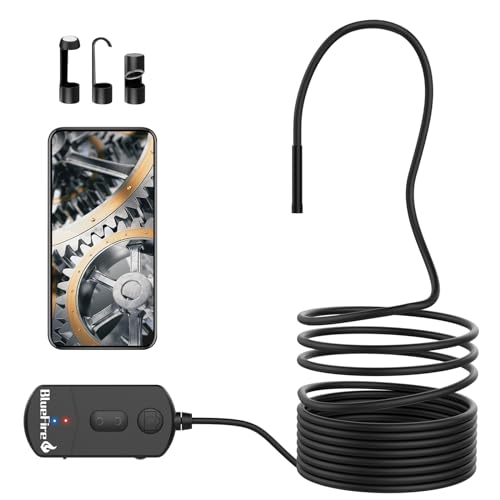


BlueFire 1080p WiFi Borescope (5.5 mm)
A low-cost wireless scope that works with any iPhone, Lightning or USB-C
- Resolution
- 1080p, 5.5 mm probe
- Connection
- WiFi (iOS 9+/Android 7+)
- Cable
- 11.5 ft
- Works with any iPhone over the scope's own WiFi
- 5.5 mm probe fits many spark-plug holes
- 1800 mAh battery, about 3–4 hours; three-step zoom
- WiFi adds some lag
- Only the camera and cable are waterproof, not the WiFi box
The low-cost WiFi option: nothing plugs into the iPhone, and the 5.5 mm semi-rigid probe passes most spark-plug holes and holds a bend you give it.
You depend on a free app with weak ratings, and joining the scope's own WiFi network is the fussier way to connect.
Based on the maker's specifications and manual and the published reviews linked below, not on our own test of this unit.
Setup, everyday use and what others found
Setup & use · per the maker
- Join the camera's WiFi network from your phone's WiFi settings, then open the viewing app. Older versions of the listing name the app as Scope View.
- Plus and minus buttons step through three levels of digital zoom, and the listing says the 6 LEDs are adjustable.
- Resolution can be set to 1920 × 1080, 1280 × 720 or 640 × 480. Photos and video are saved through the app on your phone.
- Sharpest about 1–4 in (3–10 cm) from the lens, with a 60° view. Zoom does not extend that range.
- The 1800 mAh battery is listed at about 3–4 hours; a micro-USB cable comes in the box, along with hook, magnet and mirror tips.
- Only the lens and cable are waterproof (IP68, under 10 minutes submerged), so keep the WiFi box dry.
What others found
The viewing app named in the listing has weak ratings in both app stores. Complaints there include confusing setup, a WiFi link that will not connect and settings that do not stick. Those reviews cover every camera that uses the app, not only BlueFire's.
We found no independent hands-on test of this model.


NIDAGE 3.9mm WiFi Borescope
Reaching inside a cylinder from your iPhone
- Resolution
- 1080p, 3.9 mm probe
- Connection
- WiFi (iOS 9+/Android 5+)
- Cable
- 5 ft
- 3.9 mm probe passes into most cylinders
- 1080p over the scope's own WiFi
- 6 adjustable LEDs, IP67 probe
- Short 5 ft cable
- Sharpest close in (about 3–10 cm); WiFi adds some lag
The thinnest probe on this page at 3.9 mm, so it passes even small plug holes, and the semi-rigid cable holds a bend to aim the camera at the bore wall.
It streams over WiFi through an app with poor reviews, and the 5 ft cable is short for anything beyond an engine.
Based on the maker's specifications and manual and the published reviews linked below, not on our own test of this unit.
Setup, everyday use and what others found
Setup & use · per the maker
- Install the HD WiFi app, join the camera's own WiFi network from your phone's settings, then open the app to see the picture.
- Pick 1920 × 1080, 1280 × 720 or 640 × 480. The 2 MP camera is lit by 6 adjustable LEDs.
- Sharpest about 3–10 cm (1.2–3.9 in) from the lens, so work close.
- The 5 ft semi-rigid cable bends and holds its shape; there is no articulation.
- The probe and cable are IP67; keep the WiFi box dry.
- The listing gives iPhone and iPad on iOS 9 or later and Android 5 or later.
What others found
The HD WiFi app has weak ratings in both app stores. Reviewers report the phone saying it has no internet connection while the app shows no picture, along with a stretched image and buttons that sit off-screen. Those reviews cover every camera that uses the app, not only NIDAGE's.
We found no independent hands-on test of this model.
- Aeronautics diploma
- Engineering degree
- BAMEC (DGCA)
- QC-trained
- ~2 yrs tool management
Why you should trust us
In aircraft maintenance, a borescope finding only counts if the image is clear enough to be judged and recorded. SK Kutubuddin spent over two decades working to that standard, with borescope inspection of turbine and compressor blades as core daily work. It is why this page puts image clarity on a small phone screen, and a connection that holds steady, ahead of convenience features.
We built these picks around how an iPhone actually connects to an inspection camera: a WiFi model that streams to an app, or a wired scope that plugs into the phone. Resolution, focus type, connection and cable length were checked against each manufacturer's specifications and the current listings, per our How We Test method, and every pick states its trade-offs, including WiFi lag and probe size.
Who this is for
This page is for iPhone owners who want an inspection camera without buying a separate screen, and who value a small kit that can live in a drawer or a glovebox. It suits occasional engine checks, home repairs, drain and wall inspections, and anyone who needs to send clear photos to a mechanic or contractor.
If you inspect under a hood every week, a scope with its own screen will be faster. If you use Android, our Android page also covers wired USB-C options.
- iPhone owners choosing between a WiFi scope and a plug-in one with no WiFi lag
- Occasional users who want a compact, lower-cost kit
- Anyone who needs to capture and share photos or video of a problem
- Households with a mix of iPhone and Android devices
How we picked
We started from the connection, because on an iPhone that decides everything else, and then compared image quality and reach. Specs were verified against manufacturer data and current listings.
- 01
WiFi or wired
A WiFi scope connects to any iPhone through an app, whatever port the phone has. A wired scope needs the right plug but avoids WiFi lag. We included both, state each pick's connection plainly, and note where a model also supports iPad, Android, Mac or PC.
- 02
Resolution and focus
Detail that looks acceptable on a large monitor can fall apart on a phone. We covered a range from a 480p compact scope to a 2K (2560 × 1440) plug-in camera, and gave extra weight to resolution and a steady feed without WiFi lag, which help a small image read cleanly at the distances you actually inspect from.
- 03
Probe size for the job
A sharp image is no help if the probe will not fit. We included a 3.9 mm probe that passes almost any spark-plug hole and a 5.5 mm WiFi scope that passes most car plug holes, and flagged the 7.9 mm probes as a tight fit there, better suited to general work.
- 04
Battery and cable
With WiFi, the scope carries its own battery and the phone's port stays free. We checked stated battery capacity and cable length, and favored semi-rigid cables that hold their shape as you feed them into a space.
- 05
A rugged, compact option
We kept a compact scope with an IP67 camera and snake, a 2 m drop rating and a long-running battery alongside the sharper models, so the choice comes down to how rough the job is and how fine the detail needs to be, rather than to resolution alone.
What to know before you buy
Wired or WiFi on an iPhone?
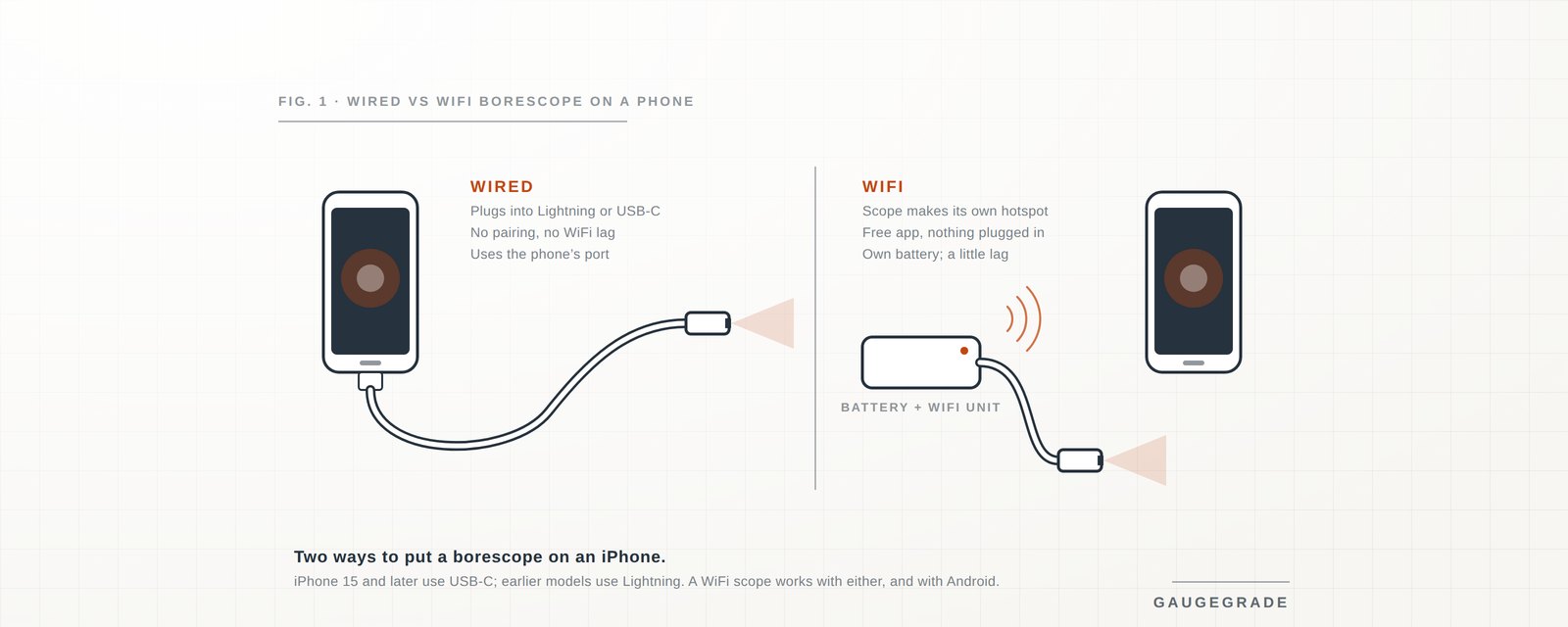
A wired scope plugs into the phone's port and shows the feed in its app with no pairing and none of WiFi's lag, which helps with fiddly work. Both wired picks here come with Lightning and USB-C connectors, so they suit older and newer iPhones; the trade-off is a cable to the phone and a port in use while you work.
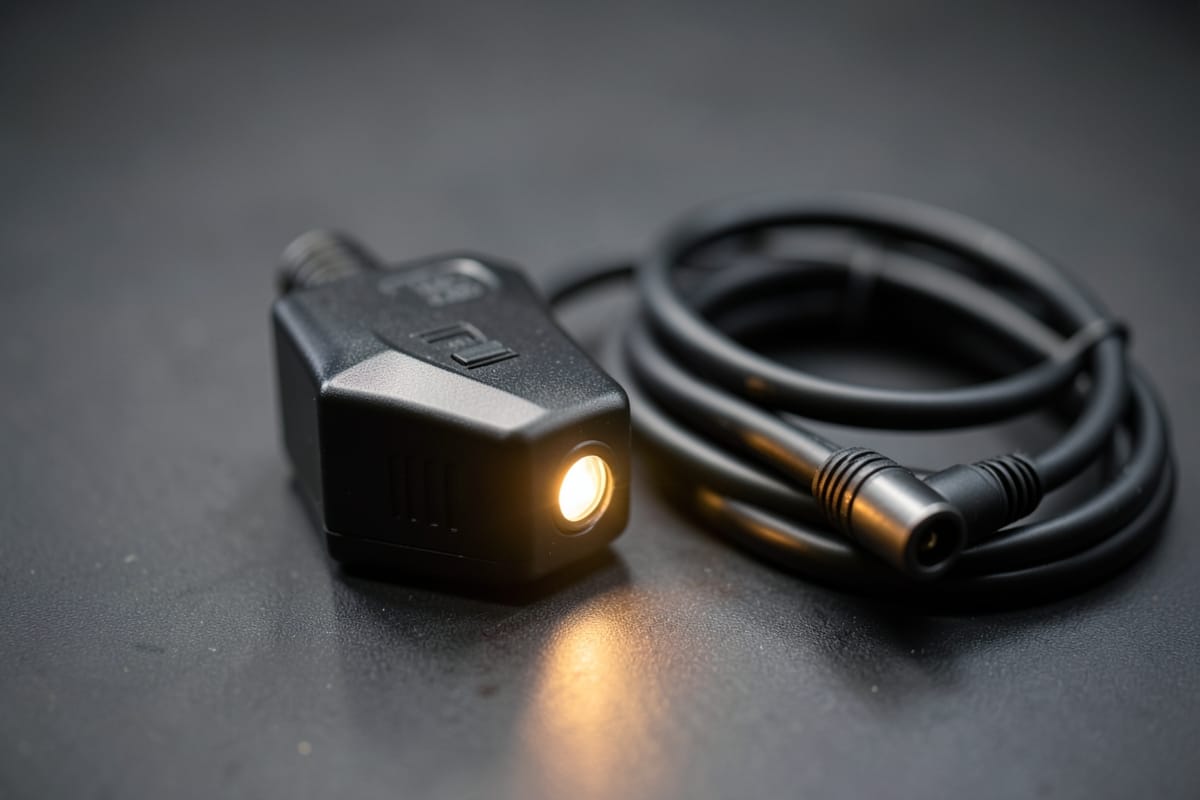
A WiFi borescope creates its own hotspot and streams to a free app, so it connects to any iPhone with nothing plugged in, and it works the same on an Android. It carries its own battery, so the phone can sit on a charger. The trade-off is a little wireless lag. For fast, regular work under a hood, a standalone-screen scope is steadier still.
Resolution, focus and probe size
On a phone screen the jump from 480p to 1080p is obvious, and a 2K camera reads cleaner again. Fixed-focus scopes are sharp only within a set distance, so hold the tip where the image looks crispest. And whatever the resolution, the probe still has to fit: about 5.5 mm or smaller to reach inside a cylinder, 3.9 mm for the tightest plug wells, and larger for general engine-bay work.
The inspection view
A phone-based scope is convenient and cheap, and perfect for occasional checks. If you inspect regularly under a hood, a scope with its own screen is worth the step up — no app, no pairing, no lag.
Setting up a connection that stays up
Most frustration with a WiFi scope on an iPhone comes from the connection, not the camera. A few habits fix nearly all of it:
- Install the maker's app first, then join the scope's network in Settings. Your iPhone may warn that the network has no internet connection. That is normal: the scope is a local link, not a router.
- If the app asks for permission to find devices on your local network, allow it. Without it, many apps cannot see the camera at all.
- If the phone keeps jumping back to your home WiFi, turn off Auto-Join for that network while you work, or move out of its range.
- Keep the phone close to the scope's handle. A car's metal bodywork and the engine itself both weaken the signal.
- Start with the scope fully charged. A flat battery ends the session no matter how good the connection is.
- If the image still stutters, lower the stream resolution in the app if it offers that setting. A smaller stream is steadier, and you can raise it again to capture a still.
Capturing and sharing what you find
An inspection is only as useful as the record it leaves. On an iPhone, the capture buttons live in the scope's app, and your photos and clips may stay inside that app until you move them.
Check the app's settings for a save-to-Photos option, and allow photo library access when prompted, so captures land where you can find and share them. If an app will not save a clip, the Screen Recording control in Control Center is a reliable fallback, and it records exactly what you saw.
Label captures as you go, with a caption in Photos or a quick note: cylinder 3, piston at the bottom, rear wall. That is useful next month; a bare file number is not. Take a wide shot first to show where you are, then the close-up, so anyone reviewing the images can follow the sequence.
When you send images to a mechanic or contractor, send the original files rather than screenshots, with a sentence on where each was taken and what prompted the inspection.
Frequently asked questions
How do I connect a borescope to an iPhone?
Two ways. A wired model plugs into the iPhone's Lightning or USB-C port and shows the feed in its app without WiFi's lag. A WiFi model creates its own hotspot and streams to a free iOS app with nothing plugged in.
Do I need a Lightning or a USB-C borescope?
Match the plug to your iPhone: iPhone 15 and later use USB-C, earlier models use Lightning. Both wired picks here include both connectors, and a WiFi scope works with either.
What resolution should an iPhone borescope be?
Treat 1080p as the floor. A 2K camera, like our top pick, reads cleaner still; 480p suits quick, close-in checks only.
What probe size do I need for cylinders?
About 5.5 mm or smaller to reach inside a cylinder, and 3.9 mm for the tightest plug wells. Larger probes are for general engine-bay work.
Is there lag over WiFi?
A little, compared with a wired scope. It is fine for inspection but less ideal for fast, precise work.
Can I use a WiFi borescope with an iPad?
Yes, as long as the maker's app runs on iPad, and many do. An iPad's larger screen makes fine detail easier to judge, although it is harder to hold steady in a tight engine bay or under a sink.
Can I charge my iPhone while using a wireless borescope?
Yes. Because a WiFi scope does not use your iPhone's port, you can run the phone from a charger or power bank during a long inspection. That is a practical advantage of wireless, since streaming video with the screen on draws the battery down steadily.
Why does the image look softer than my iPhone's own camera?
The camera in a borescope tip is tiny, with a small lens and sensor, and the video is compressed to stream over WiFi. Fixed-focus scopes are also sharp only within a limited distance range. Hold the tip at the distance where the image looks crispest, and use autofocus or zoom if your model has it.
Related reading
- Aeronautics diploma
- Engineering degree
- BAMEC (DGCA)
- QC-trained
- ~2 yrs tool management
SK spent over two decades in aircraft maintenance, working hands-on with aero-engine systems and flight data recorder systems, borescope-inspecting turbine and compressor blades, and spending almost two years in a dedicated tool bay. He holds a diploma in mechanical engineering (aeronautics), an associate degree in science, an engineering degree and a Basic Aircraft Maintenance Engineer's Certificate (BAMEC) from DGCA, and has completed quality-control and aviation fuels & lubricants training. GaugeGrade applies the same inspection, torque and tool-management standards to the tools everyday mechanics, DIYers and trades actually buy.